Notepad++ plugin
Settings profiles
Nine tabs full of settings is exactly why profiles exist: save your current configuration under a name, load it back with one click, and export it as JSON to share with a colleague or check into a repo — so a whole team formats to the same rules.
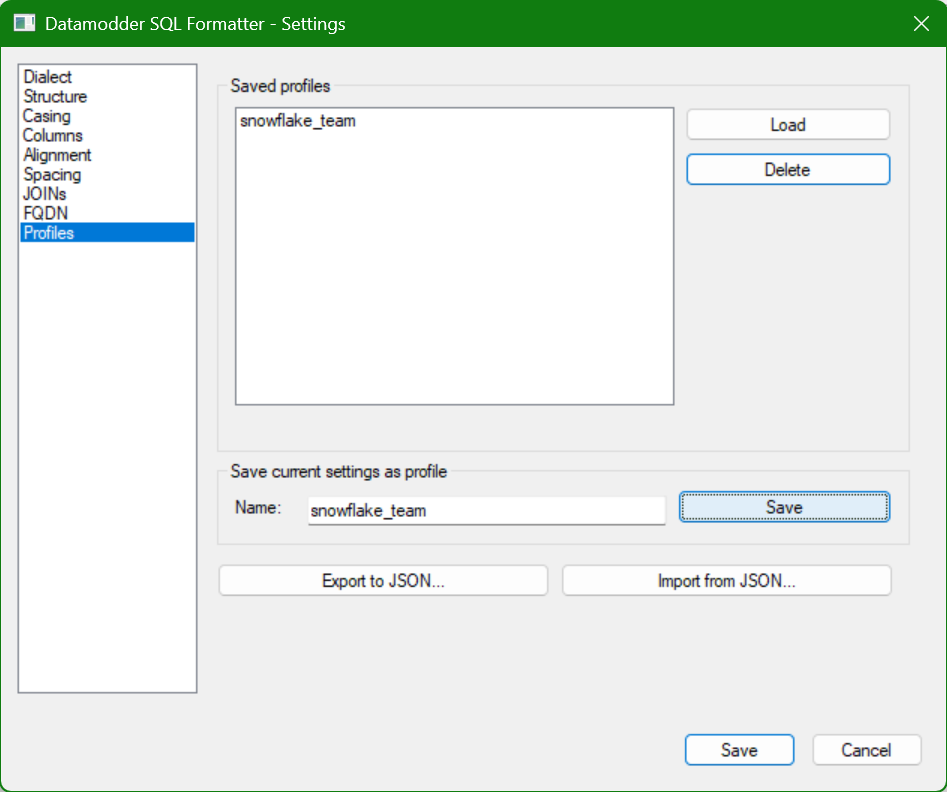
Save, load and delete — all local
On the Profiles tab you give your current configuration a name and click Save; the profile appears in the list and is active again with one click of Load. Profiles are written as a separate JSON file per profile to %appdata%\Notepad++\plugins\config\FormatSQL_profiles — purely local, no account or cloud sync required.
Sharing with your team via export/import
Export to JSON... writes the selected profile to a file you place wherever you like — for example in a shared repo next to your dbt project. A colleague uses Import from JSON... to pick up the exact same settings. That means never having to walk through nine tabs again to reproduce someone else's formatting style.
snowflake_team.json
{
  "dialect": "snowflake",
  "kw_case": "upper",
  "fn_case": "upper",
  "id_case": "lower",
  "split_cols": true,
  "comma_pos": "before",
  "alias_op": "add",
  "align_keywords": true,
  "align_join_on": true,
  "case_stmt": "expand_joined",
  "cte_nl": true,
  "semi_add": true,
  "fqdn_schema": "analytics"
}
Frequently asked questions
Does a profile really contain every setting, including dialect and FQDN?
Yes — all nine tabs are captured in a single JSON file: dialect, casing, columns, alignment, structure, spacing, joins and FQDN settings (database/schema).
Can I keep multiple profiles side by side for different projects?
Yes, the profile list isn't limited to a single entry — save one profile per client, dialect or project, say, and switch between them with Load.