Notepad++ plugin
Parquet preview via DuckDB
Parquet is a binary format — you can't just open it in a text editor. This plugin does it anyway: it launches the locally installed duckdb.exe in the background, reads the file, and dumps the rows into a brand-new, read-only tab as CSV, JSON or YAML. The other way round, you can just as easily write YAML, JSON or CSV out as .parquet.
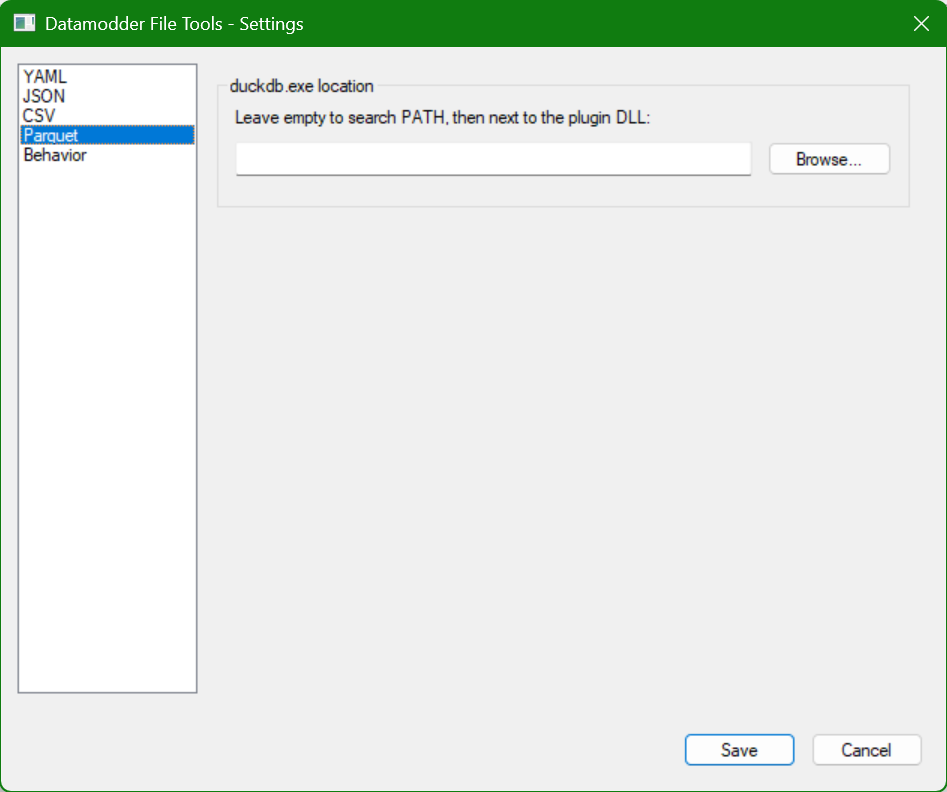
Open as CSV, JSON or YAML — in a new, read-only tab
Open the .parquet file in Notepad++ and choose Plugins → Datamodder File Tools → Parquet → Parquet → CSV / JSON / YAML. Behind the scenes, duckdb.exe runs the query SELECT * FROM read_parquet(...) LIMIT 100000 and puts the result in a new tab. That 100,000-row limit is there to show a fast preview even on a large file without freezing Notepad++; the original .parquet file is never modified.
The other way: writing YAML, JSON or CSV out as .parquet
From each of the other three format submenus there's a "→ Parquet (file)" option. That writes a new .parquet file next to your current document, again via duckdb.exe — without you having to define a schema yourself; duckdb infers column types automatically from the source data.
Frequently asked questions
Can I edit the preview and save it back as .parquet?
The preview tab is purely for viewing — there's no direct 'save as parquet' from that tab. To write changed data back, edit the exported CSV/JSON/YAML and then use that format's →Parquet (file) option to write a new .parquet file.
What happens with a Parquet file of more than 100,000 rows?
The preview shows the first 100,000 rows — enough to judge structure and sample data. For full data analysis of larger files, a text viewer isn't the right tool anyway; use duckdb.exe or a BI tool directly for that.